
You need NinjaTrader 8 on a Windows computer, connected to live prices, and your licence key and your Book from your email. The pictures are drawings, not screenshots, so your NinjaTrader may look a little different.
Before you start
New to NinjaTrader? Read this part from the top. Each point is one thing to have, to do or to know. Does Windows warn about Chaldea Setup? See When Windows warns.
-
A Windows computer. NinjaTrader 8 runs on a Windows PC, and NinjaTrader asks for Windows 11. It does not run on a Mac, a tablet or a phone.
-
A free NinjaTrader login. Make one at account.ninjatrader.com/register, or in the EU at account.ninjatrader.com/eu/register. It needs your email and a password, and no money.
-
NinjaTrader 8 itself, free. Log in on that site, click Download in the menu on the left, and install NinjaTrader. When NinjaTrader starts, it asks for the same username and password.
-
The Free plan is enough. NinjaTrader's Free plan costs nothing a month and runs our add-on, on pretend money and, once your account has money in it, for real. NinjaTrader then takes a small fee each time a contract is bought or sold.
-
Practise first, on Sim101. Every NinjaTrader has a practice account called Sim101, with pretend money. Run the strategy on Sim101 first: it trades as if for real, but no real money moves.
-
A futures account, for real money. To trade for real you need a futures account in your own name: NinjaTrader's own is the simplest, opened from the same account page and paid into by bank transfer, or a prop firm's. If you live in the EU, NinjaTrader's own is NinjaTrader EU, open in every EU country since June 2026.
-
What one contract means in money. The strategy trades one NQ contract, and every point NQ moves is $20 on it: 100 points is $2,000, and NQ often moves several hundred points in a day. While a trade is open NinjaTrader holds back $1,000 of your account (its day margin for NQ in October 2026), so keep well more than that in it, and only money you can afford to lose.
-
Live prices, the data feed. The strategy needs live NQ prices from CME, the exchange where NQ trades. A NinjaTrader account gets them through NinjaTrader, free for the first 14 days and after that while your account has money in it, and CME's fee for live prices for private traders is up to $12 a month (October 2026); a prop firm gives you its own.
-
Connect. Start NinjaTrader and log in. It asks "How do you want to trade?": click Launch under Simulation to practise on Sim101, or Start Trading under Live Trading once your account has money in it.
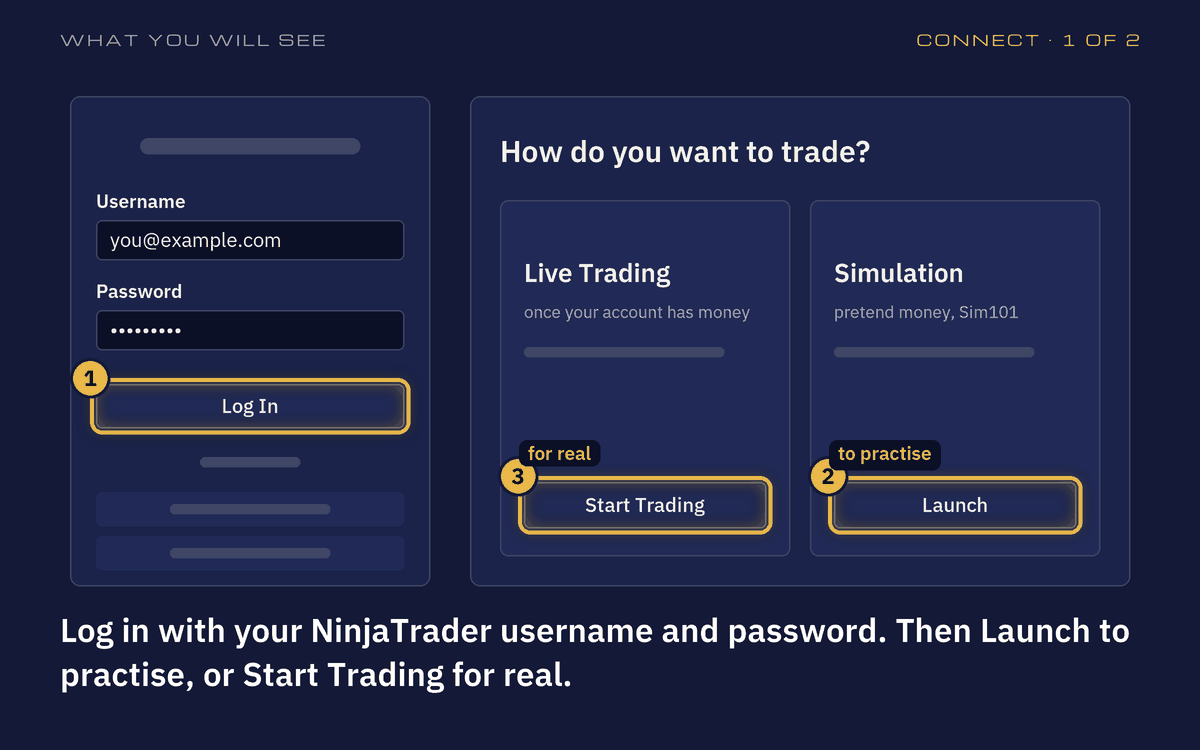
What you will see: Log In, then Launch to practise or Start Trading for real. -
The Connections menu. In the Control Center, the small window that then opens, Connections shows a green dot next to the connection that Launch or Start Trading made: it brings your live prices, so you need no other data feed. Simulated Data Feed makes up random prices and is good only for practising the clicks; Playback and Kinetick End Of Day are not live prices either.
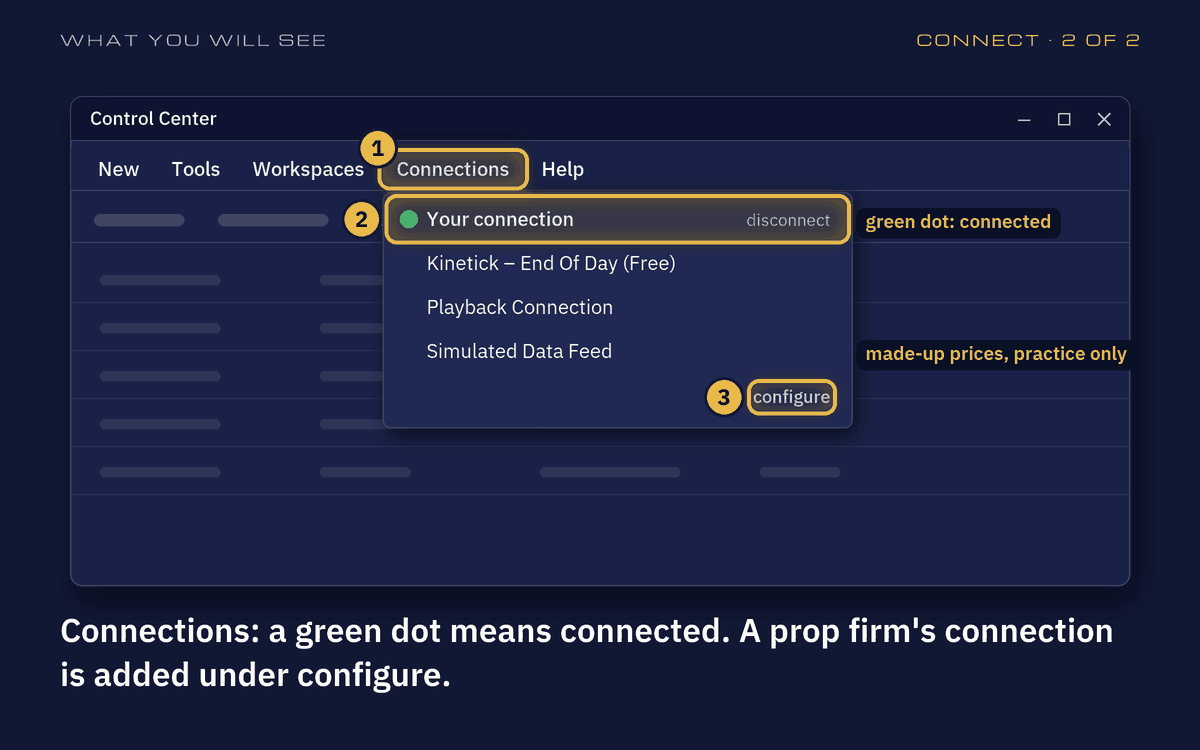
What you will see: Connections: a green dot means connected; configure adds a connection. -
A prop firm's account. Your firm tells you which connection to add. In NinjaTrader, tick Multi-provider under Tools, Settings, General, then add that connection under Connections, configure; from then on NinjaTrader no longer asks "How do you want to trade?", and you connect in the Connections menu.
-
Keep it on. The strategy runs only while NinjaTrader is open and connected: keep the computer on, plugged in and awake through the US day session, 9:30 to 16:00 New York time (15:30 to 22:00 Central European time for most of the year). In Windows set sleep to Never (Settings, System, Power, or Power & battery on a laptop), and keep NinjaTrader and the strategy's chart open.
-
What stops it. If NinjaTrader closes or the computer restarts, the strategy stops; when NinjaTrader opens again it is still on its chart but switched off, so tick Enabled again. Closing its chart removes it, pressing Close on its trade switches it off, cancelling its orders by hand can stop it, and after the internet drops, look in the Strategies tab that it still runs.
-
How to stop it. Untick Enabled, in the Control Center's Strategies tab or in the chart's Strategies window, and it takes no new trades. Switching it off does not close a trade it holds, so do it when it holds none, for example after the close; cancelling the subscription is something else and only stops the next payment.
Words
The words on this page, in plain English.
- Account
- Where your trades and your money are. In the strategy's settings you pick which one it trades.
- Add-on
- A small program that adds something to NinjaTrader. Ours is ChaldeaLabs.zip and holds the strategy "Chaldea Labs".
- Available and Configured
- The two lists in the Strategies window: Available holds every strategy you can add, Configured the ones on this chart.
- Book
- Which of our strategies you subscribe to, for example Lahar. One add-on runs them all, so you pick yours in the Book list.
- Broker
- The company that keeps your trading account and sends your orders to the exchange.
- Chart
- A NinjaTrader window that draws prices as bars. The strategy lives on one chart.
- Clipboard
- Where Windows keeps what you copied. Select something and press Ctrl+C to copy it; Ctrl+V pastes it.
- CME
- The exchange in Chicago where NQ is traded.
- Connection
- NinjaTrader's link to live prices and to your account. The Connections menu shows it.
- Contract
- One unit of a future. The strategy trades one NQ contract: Contracts 1.
- Control Center
- NinjaTrader's main window, with New, Tools, Workspaces, Connections and Help at the top.
- DailyLossLimitTicks
- If you want one: when a day's loss reaches this many ticks per contract, the strategy closes its trade and stops for the day. 0 means off.
- Data feed
- The live prices NinjaTrader gets through a connection. Without it the chart stays empty.
- Data Series
- The window where you choose a chart's market, its bars and how many days it loads.
- Days to load
- How many days of past prices the chart loads, so the strategy can read the past.
- E-mini
- The usual size of CME's index futures. NQ is the E-mini Nasdaq 100.
- Edge
- Microsoft Edge, the web browser that comes with Windows.
- Enabled
- The strategy's on switch. Ticked means on.
- ETH
- Electronic trading hours: nearly round the clock. CME US Index Futures ETH is their name in NinjaTrader.
- Flat
- Holding no trade. "Flat before the close" means it is out before the session ends.
- Front month
- The NQ contract with the nearest date ahead of today, the one most people trade, for example NQ 12-26.
- Funded
- An account with real money in it.
- Future
- A contract to buy or sell at a set price later. Traders use them to follow a market, here the Nasdaq 100.
- Futures account
- A trading account, at a broker or a prop firm, that may trade futures.
- Global Simulation Mode
- An item in NinjaTrader's Tools menu. With a tick next to it, NinjaTrader lets you pick only practice accounts.
- Hard limits
- The most you allow: Contracts, how many at once, and DailyLossLimitTicks, how much loss in a day.
- Import
- How NinjaTrader takes in an add-on: Tools, Import, NinjaScript Add-On.
- Instrument
- What a chart shows the prices of, here NQ. You type it in the Instrument box.
- Kinetick End Of Day
- A free connection in NinjaTrader with each day's closing prices only, not live prices.
- L1 (Level 1)
- The last price and the best prices to buy and to sell. It is all the strategy needs.
- Launch
- The button under Simulation after you log in to NinjaTrader. It connects for practice on Sim101.
- Licence key
- Your own code, CL- and twenty letters and digits. It switches the strategy on for you.
- Long and short
- Long gains when the price goes up, short gains when it goes down.
- Machine id
- A code made from your computer's name, so your key works on at most two computers.
- Margin
- Money your broker holds back while a trade is open.
- Multi-provider
- A NinjaTrader setting, under Tools, Settings, General, that lets you add other companies' connections, for example a prop firm's.
- NinjaScript Output
- A NinjaTrader window, New, NinjaScript Output, where the strategy writes what it does.
- NinjaTrader 8
- The trading program for Windows that the strategy runs in. It is free to download.
- NQ
- The E-mini Nasdaq 100 future: a future on the 100 largest companies on the Nasdaq exchange.
- One-minute bars
- Each bar on the chart shows one minute of prices.
- Playback
- A NinjaTrader connection that replays old prices, for practice. Not live prices.
- Position
- A trade that is open now.
- Prop firm
- A company that lets you trade with its money, on its rules.
- Rollover
- Every three months NQ moves to the next contract, and the strategy moves with it by hand.
- Session
- The hours a market trades. The US day session is 9:30 to 16:00 New York time.
- Sim101
- NinjaTrader's practice account, with pretend money.
- Simulated Data Feed
- A connection that makes up random prices, to practise the clicks.
- Smart App Control
- A part of Windows 11 that blocks programs that are not signed. It has no Run anyway.
- SmartScreen
- The part of Windows that warns about new programs: "Windows protected your PC".
- Start Trading
- The button under Live Trading after you log in to NinjaTrader. It connects your real account, once it has money in it.
- Strategies tab
- The list in the Control Center of the strategies you run, with their on switches.
- Strategy
- A set of rules that buys and sells by itself.
- Tick
- The smallest step NQ moves: a quarter of a point, $5 on one contract.
- Trading hours
- Which hours a chart counts.
- Zip
- A file that packs other files. Keep ChaldeaLabs.zip as it is: NinjaTrader unpacks it.
When Windows warns
Chaldea Setup is new and not yet known to Windows, so your browser and Windows may warn about it.
-
In the browser
If the download says Chaldea Setup is not commonly downloaded: in Edge, click the three dots next to it, then Keep. If it asks again, click Show more, then Keep anyway. In another browser, look next to the download for a button such as Keep or Allow download.
-
In Windows
When you open it, Windows may say that it protected your PC: click More info, then Run anyway.
No Run anyway? Then Smart App Control, a part of Windows, blocks programs that are not signed, and Chaldea Setup is not signed yet. Install by hand instead: the last step of Install says how.
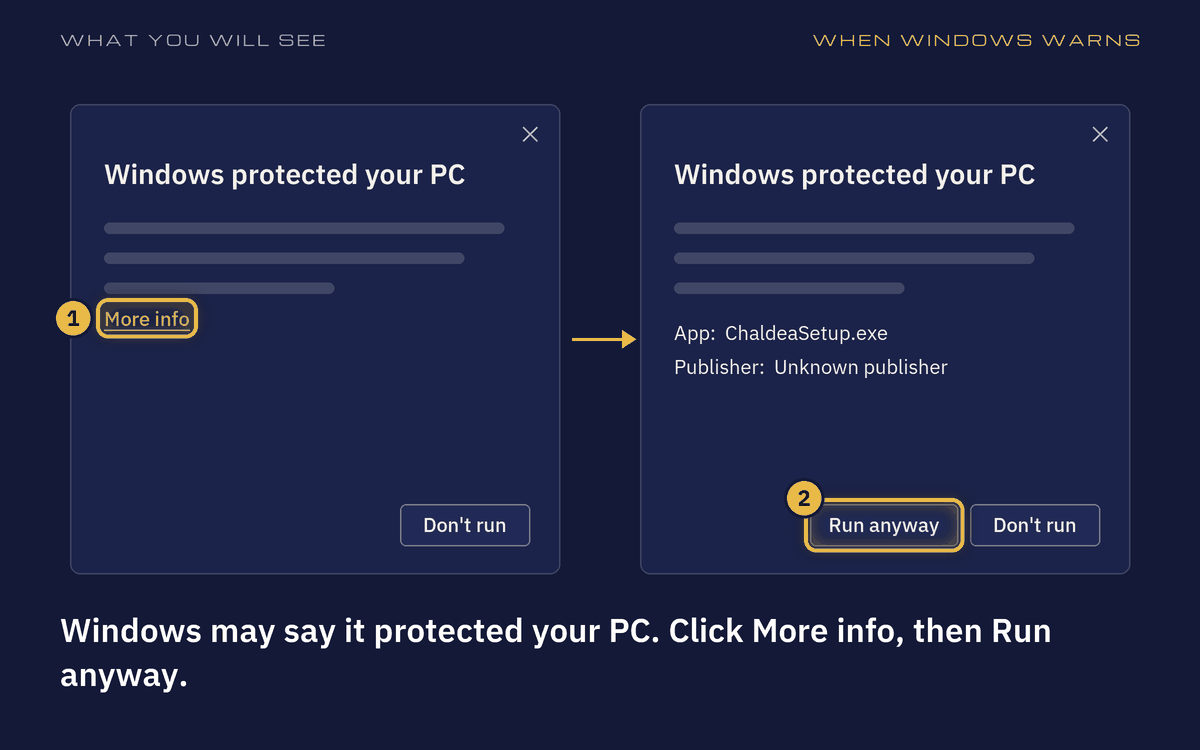
What you will see: More info, then Run anyway.
1. Install
-
Run Chaldea Setup
Open the file you downloaded. Copy your licence key from the email or the thank-you page: select it and press Ctrl+C. Then paste it into Chaldea Setup with Ctrl+V and press Enter. Chaldea Setup checks that NinjaTrader 8 is there and saves the add-on in a folder of its own, Downloads\Chaldea Labs.
Is NinjaTrader 8 not on this computer? Chaldea Setup says so: install it first, as Before you start says, then press Check again.
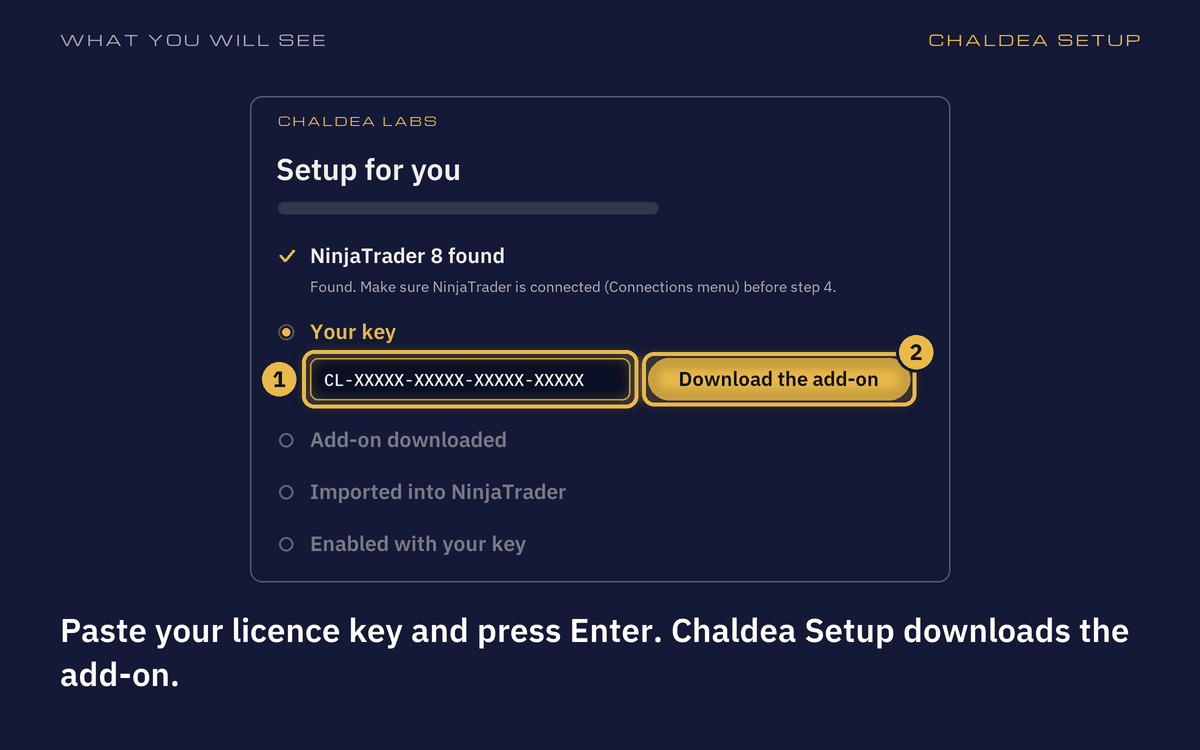
What you will see: Paste your key into Chaldea Setup and press Enter. -
Open NinjaTrader and connect
Press Open NinjaTrader in Chaldea Setup, or start NinjaTrader from the Start menu. Log in, click Launch or Start Trading, and wait for the Control Center: the window with New, Tools and Connections at the top.
-
Open the Import dialog
In NinjaTrader's Control Center: Tools, Import, NinjaScript Add-On. Import is the tenth item in the Tools list.
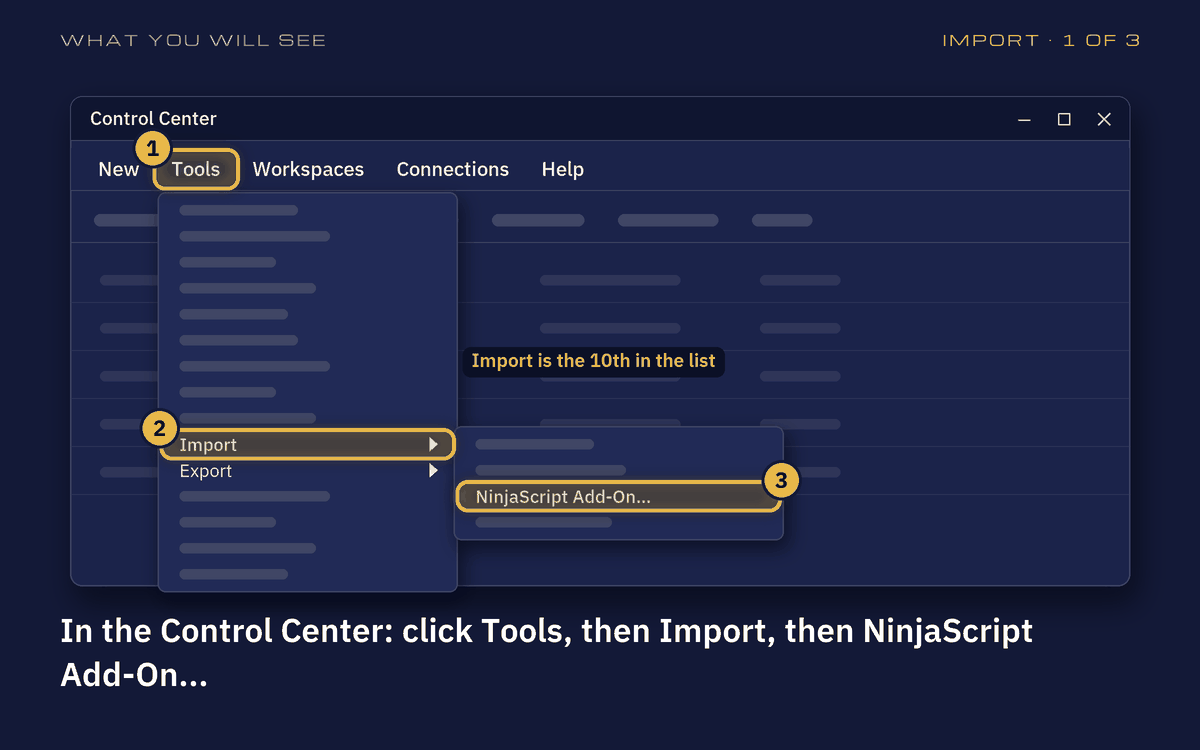
What you will see: Tools, Import, NinjaScript Add-On. -
Go to the folder
Click the File name box, paste with Ctrl+V and press Enter. Chaldea Setup has put the folder's path in your clipboard; its Copy path button puts it there again. The dialog now shows the folder.
Without Chaldea Setup, go to the folder where you saved the zip instead, usually Downloads.
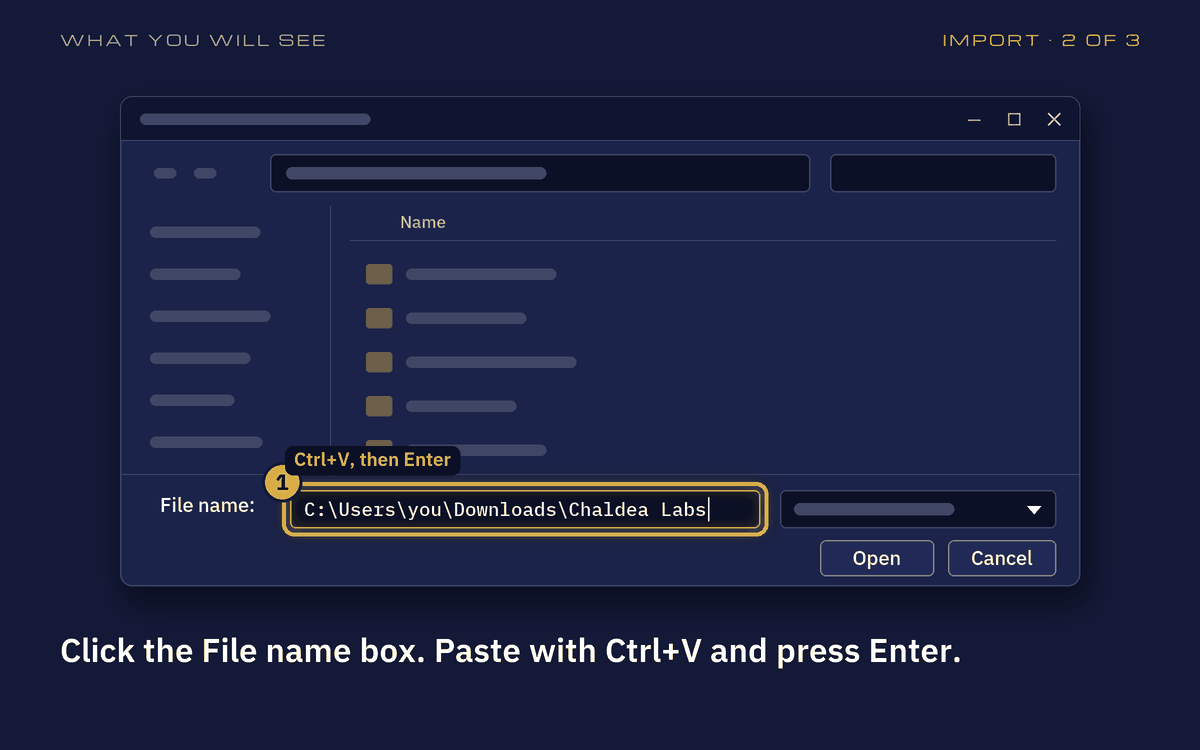
What you will see: The folder's path in the File name box, then Enter. -
Pick the zip
Click ChaldeaLabs.zip once, then Open. If the button says Import, click that. Do not double-click the zip: that opens the zip like a folder. NinjaTrader imports the add-on and says so, and Chaldea Setup ticks the row.
If NinjaTrader asks to replace a Chaldea Labs file, that is an update: click Yes, then restart NinjaTrader. If it speaks of programming errors, email us.
Without Chaldea Setup: download the add-on, keep the zip as it is, and pick it in this dialog where you saved it.
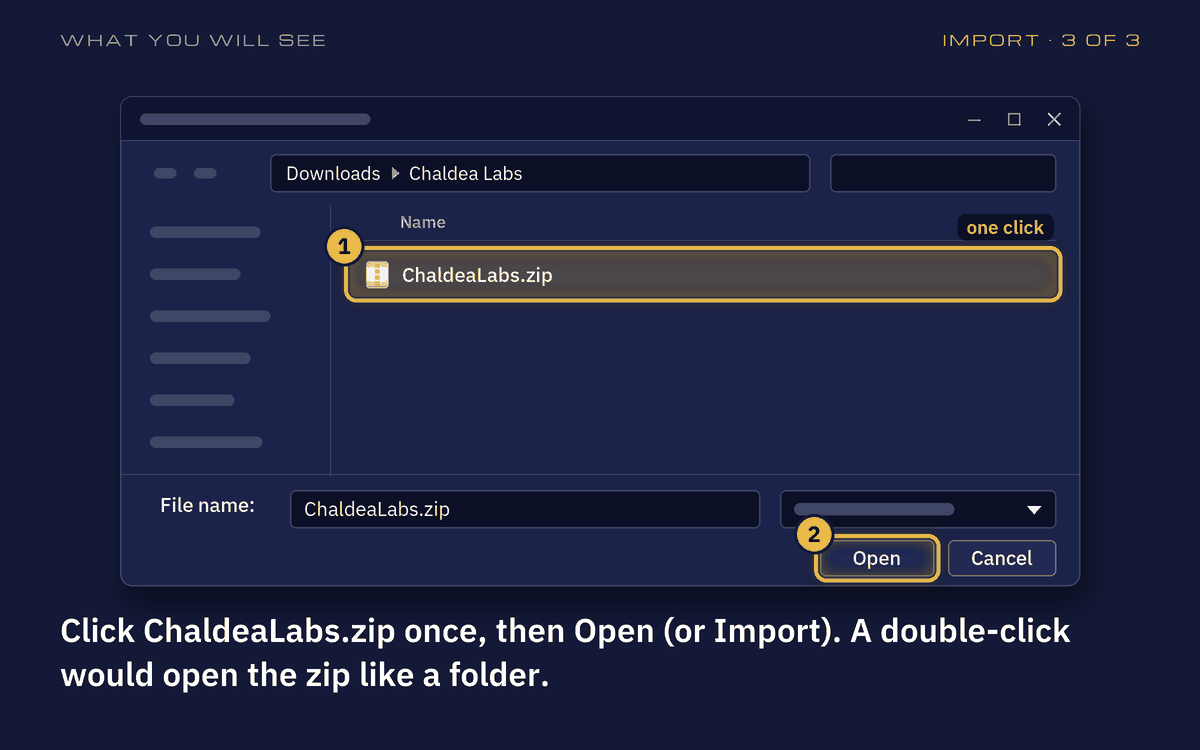
What you will see: One click on ChaldeaLabs.zip, then Open (or Import).
2. Put it on a chart
The strategy runs on one chart: NQ, the E-mini Nasdaq 100 future, in 1 Minute bars. Do this while NinjaTrader is connected: without a connection the chart stays empty and its menu has no Strategies. The add-on adds any other market data it needs by itself.
-
Open a new chart
In the Control Center: New, Chart. Chart is the eighth item in the New list.
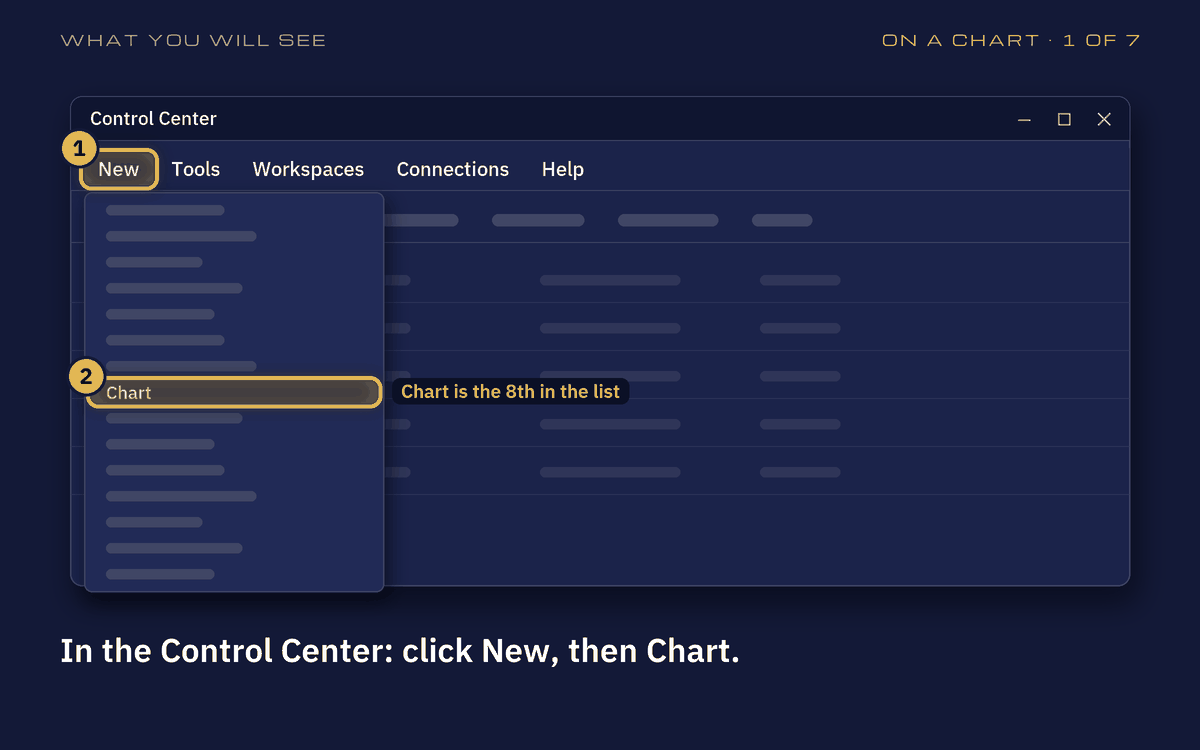
What you will see: New, Chart. -
Choose NQ and 1 Minute
Type NQ in the Instrument box at the top and pick the front month: the NQ with the nearest date ahead of today, for example NQ 12-26. From the second week of December 2026 that is NQ 03-27. Never pick NQ ##-##.
Set Type to Minute and Value to 1.
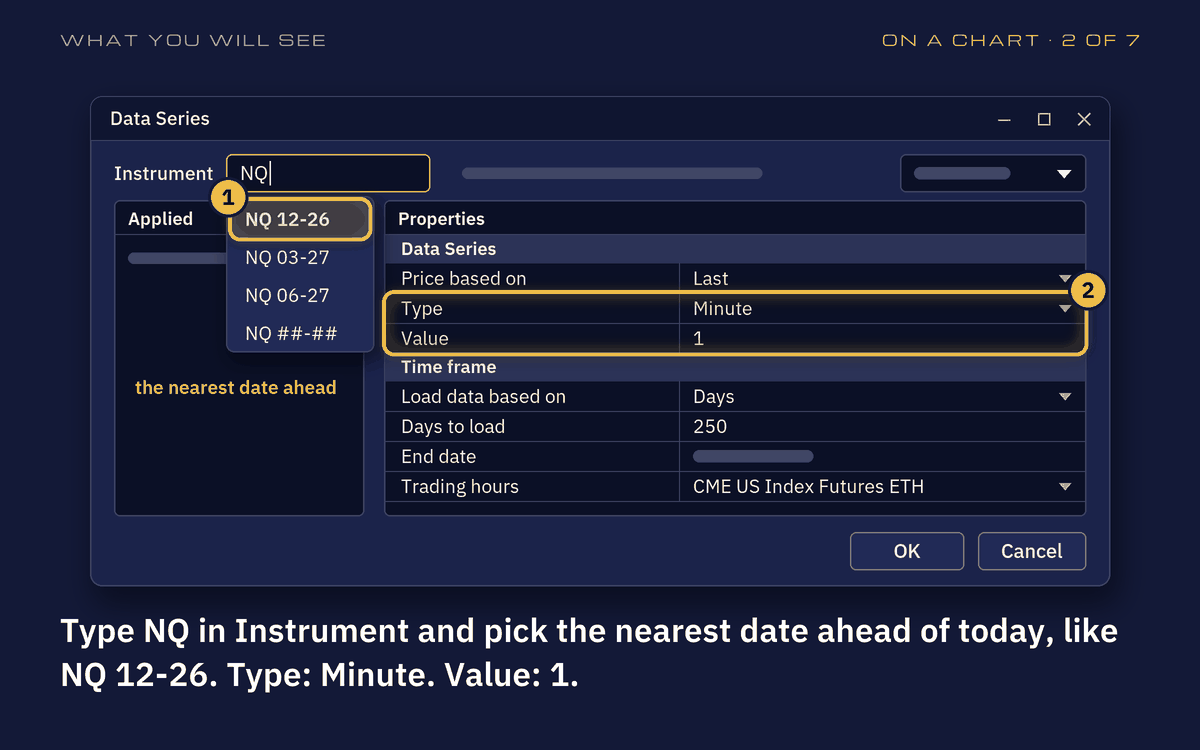
What you will see: NQ, the nearest date ahead; Minute; 1. -
Set the trading hours and the days
Set Trading hours to CME US Index Futures ETH, and Days to load to 250 or more, so the strategy has the history it needs. Then OK.
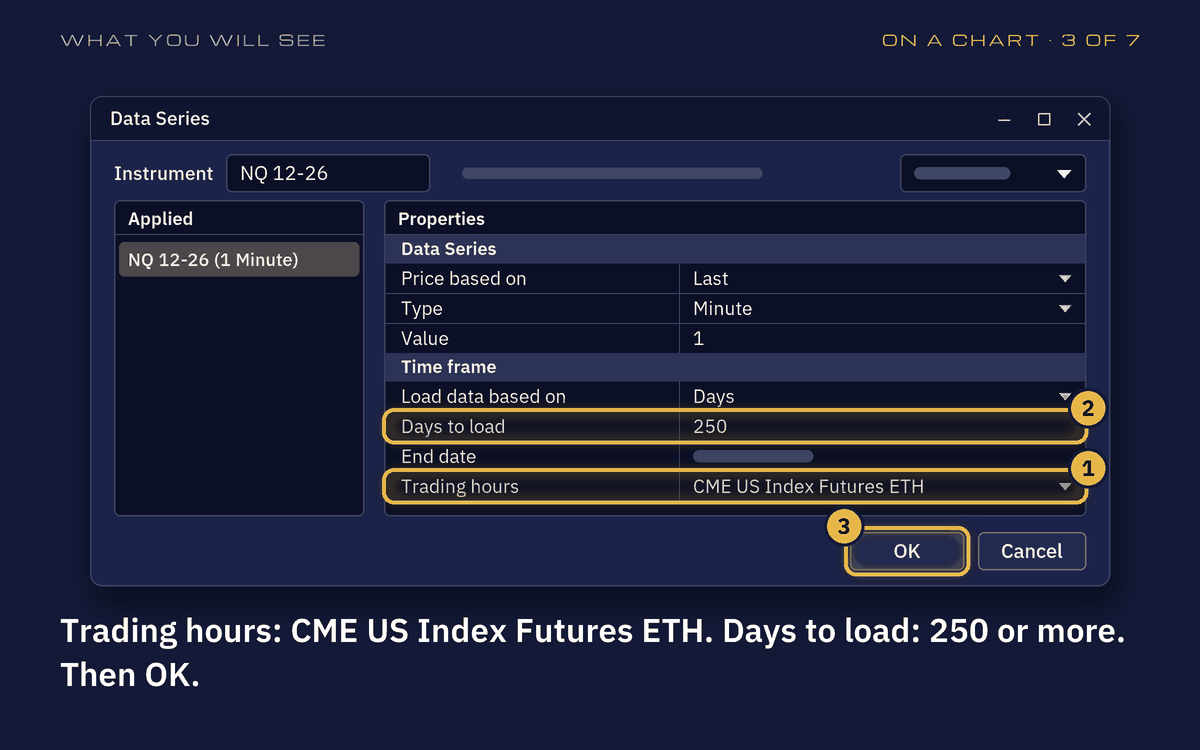
What you will see: CME US Index Futures ETH; 250 days; OK. -
Open Strategies
Right-click the chart, then Strategies. Or click the chart and press Ctrl+S.
No Strategies in the menu? NinjaTrader is not connected: see Connect in Before you start.
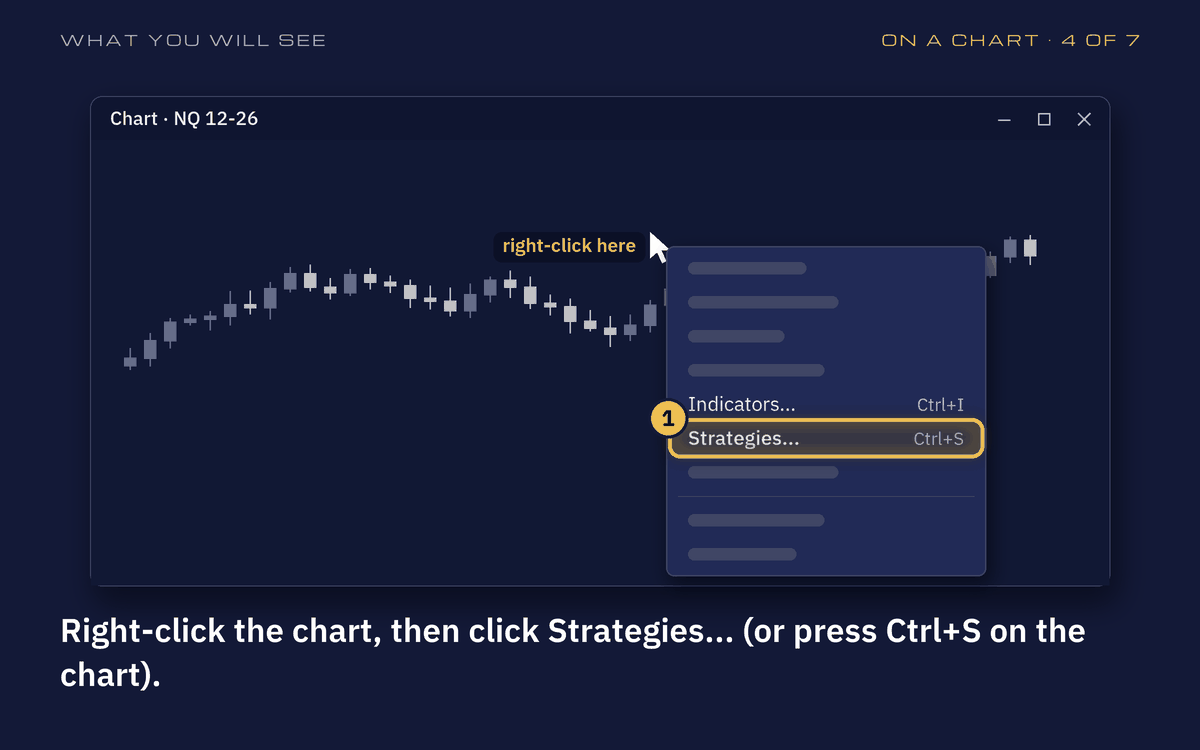
What you will see: Right-click the chart, Strategies (or Ctrl+S). -
Add Chaldea Labs
Under Available, click Chaldea Labs, then add.
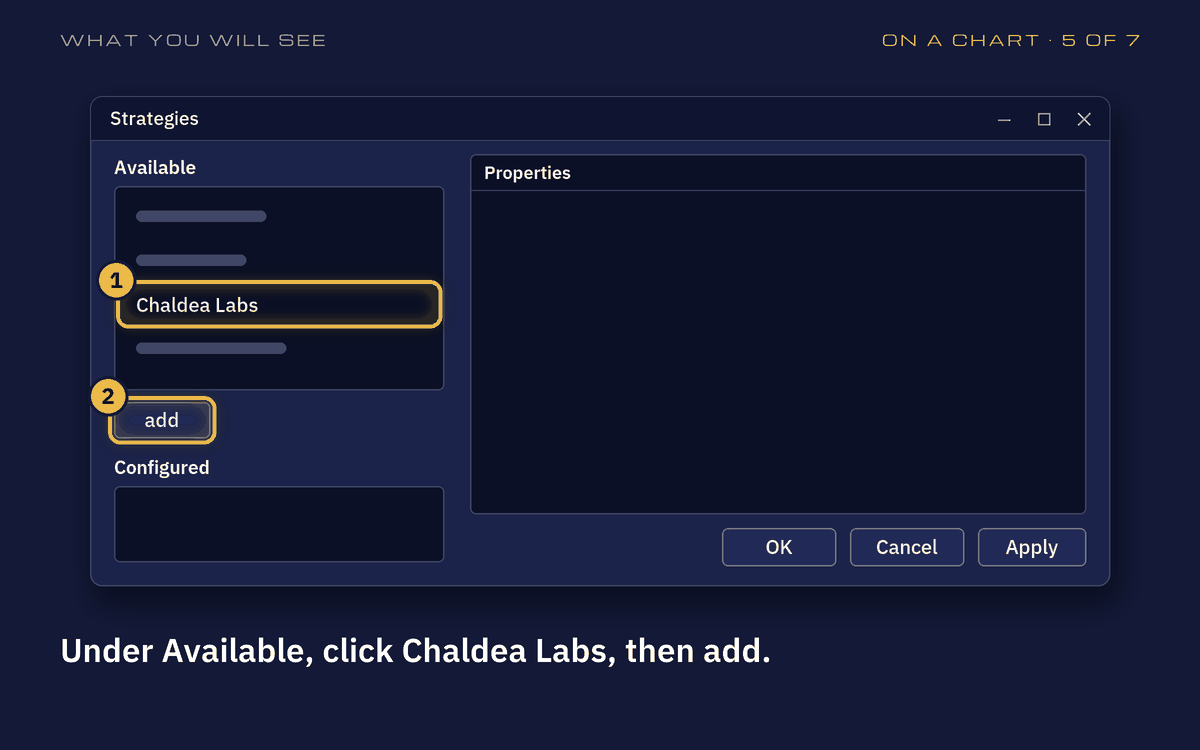
What you will see: Chaldea Labs, then add. -
Your key and your Book
LicenceKey: paste your key with Ctrl+V. Chaldea Setup has put it in your clipboard again; its Copy key button does it once more. Book: the strategy named in your email. One add-on runs every book, so Book says which one is yours.
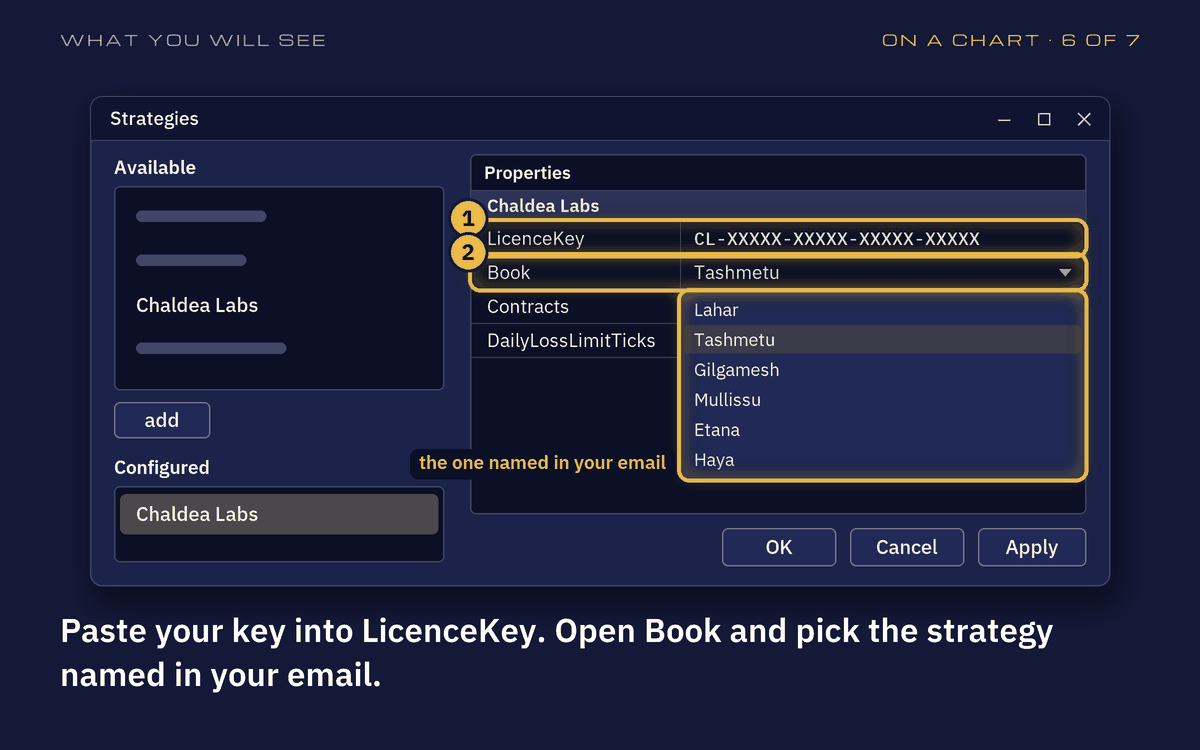
What you will see: LicenceKey and Book. -
Contracts, Account, then Enabled
Contracts: 1. DailyLossLimitTicks: leave it at 0, which means off, or type how many ticks per contract you accept losing in one day. One tick is $5, so 200 ticks is $1,000.
Account: Sim101 trades pretend money, the right place to start. To trade for real, pick your real account in the list. It is there only when you connected with Start Trading or your prop firm's connection. Still only Sim101? Open the Tools menu: if Global Simulation Mode has a tick, click it to remove the tick. NinjaTrader allows that only on a real account, not on a free practice login.
Tick Enabled, then OK. On a real account, real orders can start from that moment.
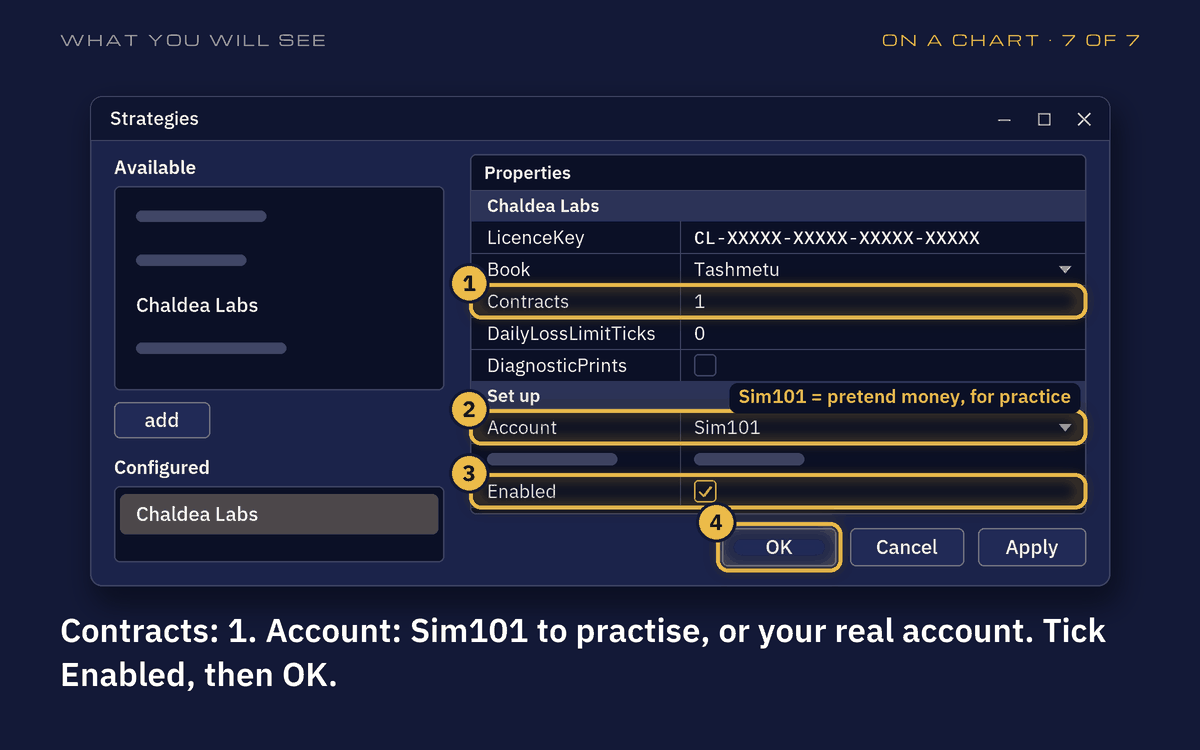
What you will see: Contracts 1, Account, Enabled, OK. -
Check that it runs
In the Control Center, click the Strategies tab. Chaldea Labs in green means it runs. Orange means it waits until it holds no trade, then starts by itself. Black means it is off: tick Enabled.
In New, NinjaScript Output, a line with "loaded and licensed" says your licence is good.
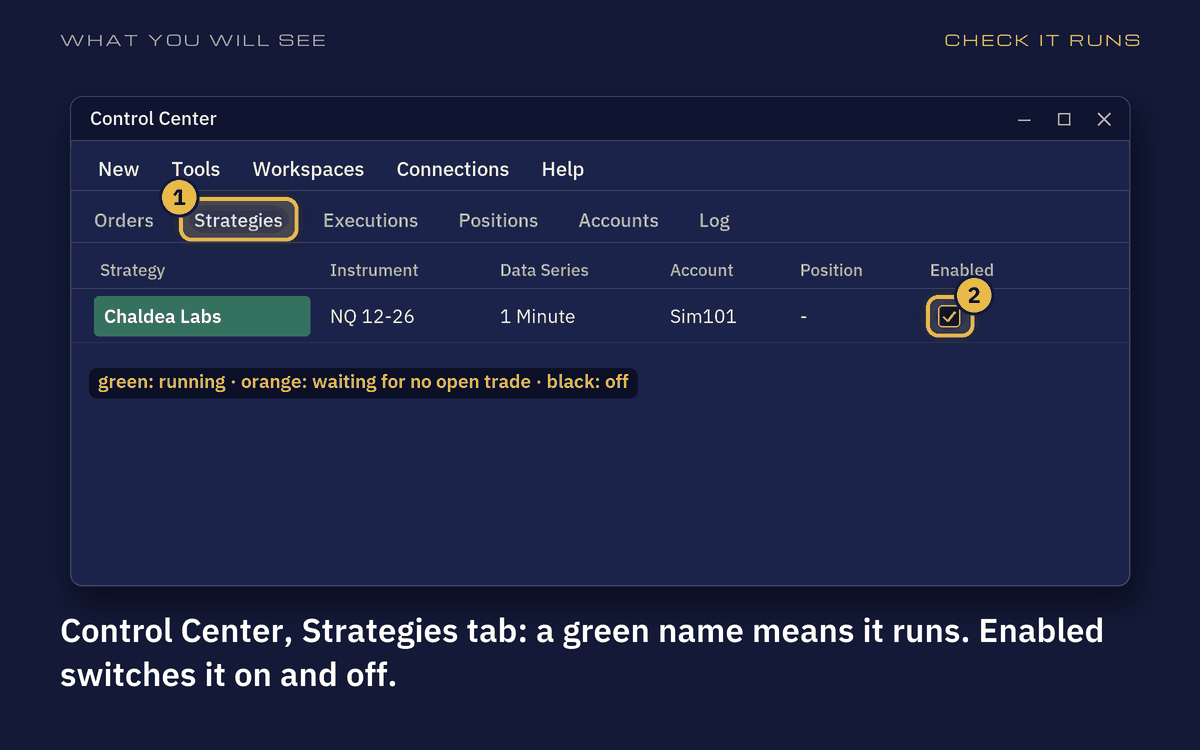
What you will see: Strategies tab: a green name runs; Enabled switches it on and off.
That is all. Leave NinjaTrader open and connected through the US day session. The strategy trades only then, and not every day, so a quiet afternoon is normal.
Every three months
NQ has a contract for March, June, September and December, and in the second week of those months the next one takes over. NinjaTrader does not move a strategy by itself.
So then, after the close: open a new chart on the next NQ (NQ 03-27 after NQ 12-26), put Chaldea Labs on it as above, and close the old chart.
Questions
Stuck at a step? Email us at support@chaldealabs.com, or reply to our email. Our terms of sale say what applies to your subscription.